You can follow this tutorial to upload the files to your hosting account.
1. Open FileZilla FTP Client.
2. Enter your FTP host, username, and password. You can use your cPanel username and password as your FTP user and password. Then click on Quick Connect.

3. Make sure that you are inside the public_html folder, if not then double click on it to go to the public_html folder.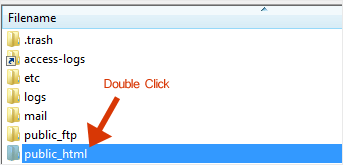
4. Under Local Site in FileZilla, open the directory where your website files are located. Right-click on your index file and choose Upload.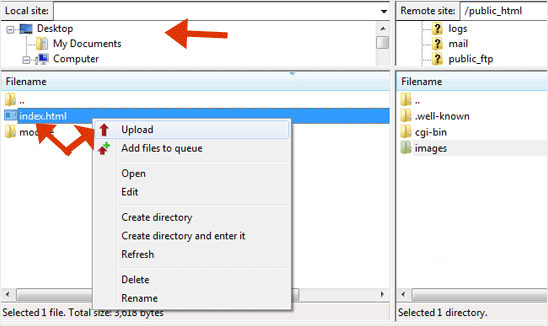
You can view the progress of the upload in FileZilla.
Installing the FileZilla FTP Client on Windows OS is easy. Just follow this...
You can access your FTP Account using the FileZilla FTP Client or any FTP...
You can create or remove a directory on your website using the FileZilla FTP...
You can download files from your website to your computer using the...